
From Google AI Studio to Web App: Building with Nuxt and Gemini (now Antigravity)
Stop guessing. Here is how to go from idea to working Gemini (now Antigravity) app without the trial and error..
A few months ago I had a simple idea: an app that tells hungry travellers where to eat, tailored to their mood, budget, and location. What I didn't expect was that the path from that idea to a deployed, production app would teach me more about building with AI than any tutorial I'd read.
This is that path, documented honestly.
By the end of this article you'll have gone from a blank screen to a working Nuxt application powered by Google Gemini (now Antigravity) — with real grounding, real API calls, and a UI generated from an actual design tool.
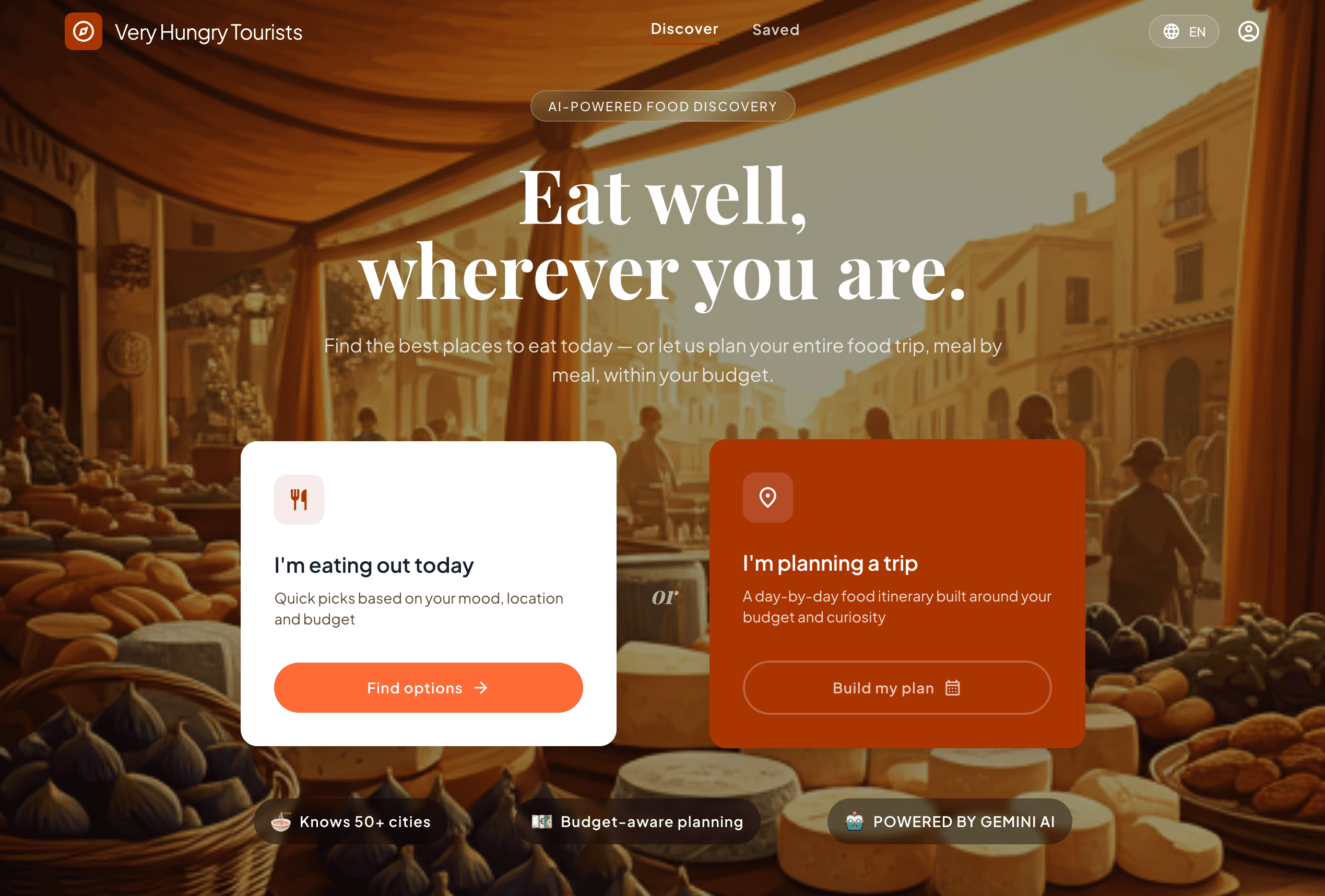
You can play with the finished result right now at hungrytourists.vercel.app before we build it together.
What we're building
Very Hungry Tourists is an AI-powered food discovery app. Give it a city, a mood, and a budget — it surfaces real restaurant recommendations with walking distances, atmosphere descriptions, and opening hours. It can also build a full day-by-day food itinerary for a trip.
The stack: Nuxt 3 on the frontend and backend, Google Gemini (now Antigravity) as the AI engine, deployed on Vercel. Design was prototyped in Google Stitch and scaffolded with Gemini CLI (now Antigravity CLI).
Step 1: From idea to prompt — Google AI Studio
Before writing a single line of code, the most valuable thing you can do is spend time in Google AI Studio. It's a free, browser-based playground where you can experiment with Gemini (now Antigravity) models, refine your prompts, and validate that your idea is actually achievable — before you've committed to any architecture.
Go to aistudio.google.com and sign in with your Google account.
Opening the playground
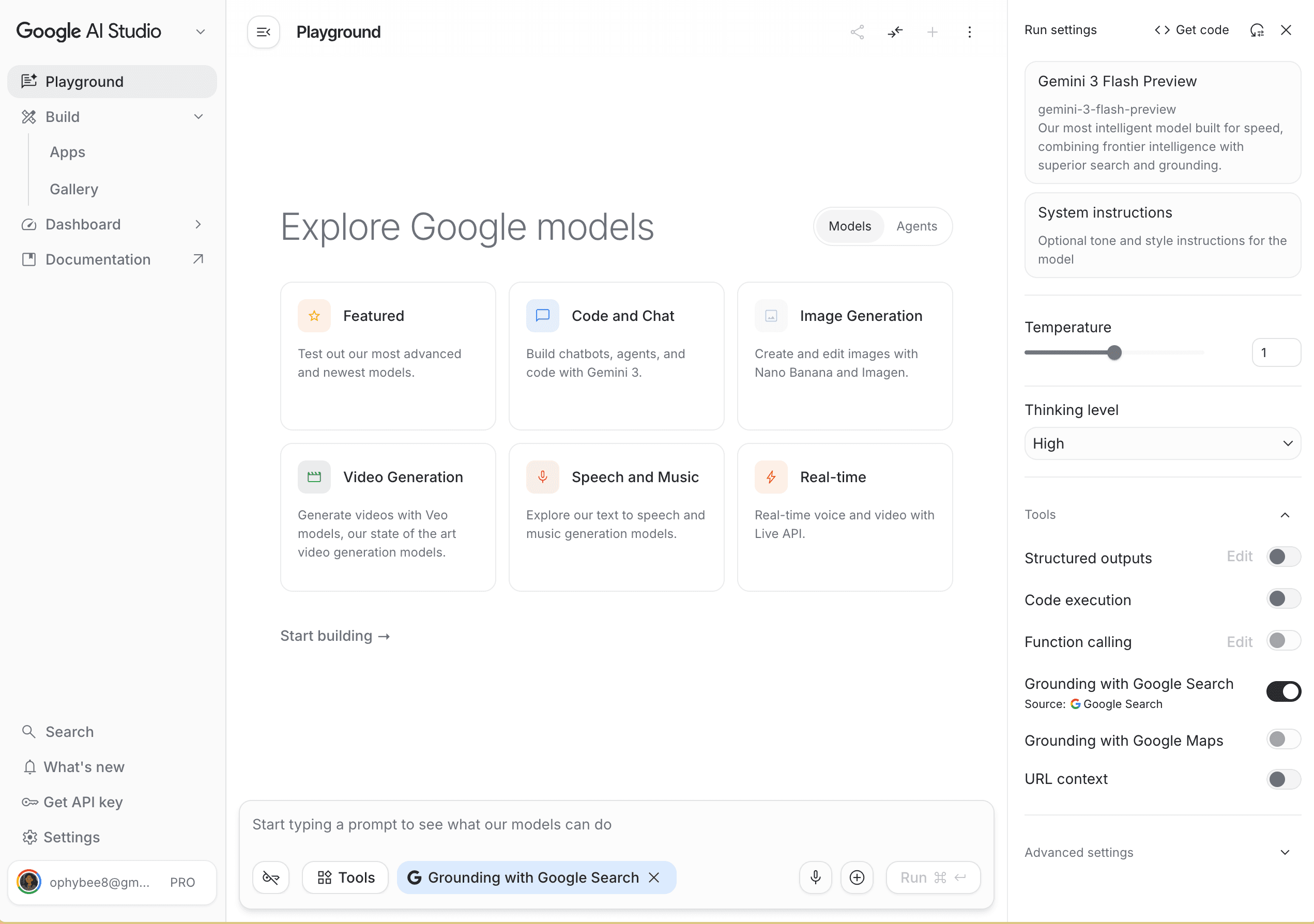
Click "New chat" in the left sidebar. This drops you into a free-form chat interface with Gemini (now Antigravity). Think of this as your sketchpad — you're not building anything yet, you're figuring out what your AI needs to know and how it should behave.
Writing your System Instructions
This is the most important step most tutorials skip. System Instructions are the persistent personality and rules you give the model — it's what transforms a general-purpose chatbot into something that behaves like your application's backend.
Click on "System Instructions" at the top of the interface and write what your AI is supposed to do. For Very Hungry Tourists, ours looked something like this:
You are a food discovery assistant for travellers.
Your job is to recommend restaurants and food experiences based on the user's:
- Current city
- Mood (vibrant scene, quiet corner, al fresco, etc.)
- Budget (€, €€, €€€)
- Whether they want a single meal or a full trip itinerary

Always respond in valid JSON format. Never add conversational text outside the JSON.
Include the following fields for each restaurant: name, cuisine, price_range,
atmosphere, distance_from_center, opening_hours, and a one-line description.
Be specific about the output format here. If you want JSON, say so explicitly. If you want the model to avoid certain phrases or behaviours, say that too. Time spent on system instructions saves hours of debugging later.
Enabling Grounding with Google Search
Here's where the real magic happens. By default, Gemini (now Antigravity) answers from its training data — which means restaurant hours, recent openings, and current availability can be wrong or outdated. Grounding with Google Search allows the model to look up live information before it responds.
In the right-hand panel, find the "Tools" section and enable "Grounding with Google Search".
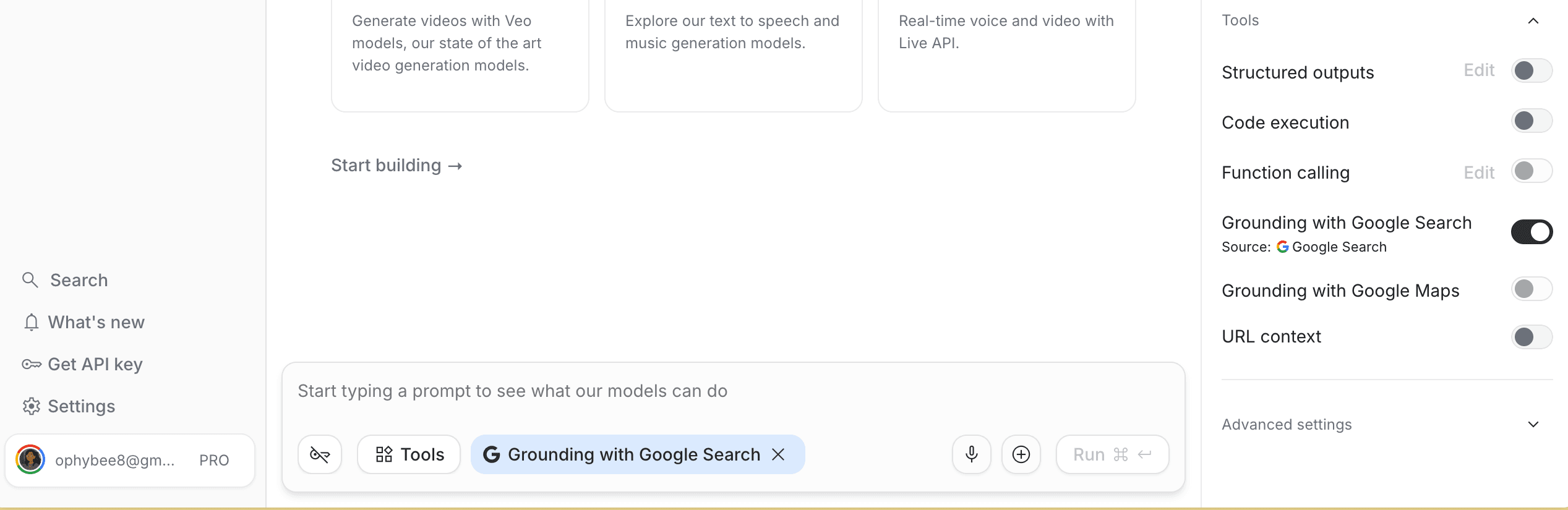
Once enabled, you'll notice the model's responses cite sources and pull in current data. For a food app, this is the difference between hallucinating restaurant hours and actually knowing the place is open right now.
Test your prompt
Now type a real test prompt in the chat — something close to what your app will actually send:
Find me 3 restaurants in Montpellier, France.
Mood: al fresco. Budget: €€. Respond in JSON only.
Watch the response. Is it structured the way you expected? Does the JSON validate? Is the grounding pulling in useful sources? This is your chance to iterate on your system instructions without touching any code.
Keep refining until the output looks exactly like what you'd want your frontend to receive. Copy that final JSON response — you'll use it in the next step.
Step 2: API keys and the free tier question
Once you're happy with your prompt behaviour in the playground, you need an API key to take it into code.
In the left sidebar, click "Get API key", then "Create API key". Associate it with a Google Cloud project (create a new one if you don't have one).
Copy the key immediately and add it to your project's .env file:
GOOGLE_AI_KEY=your_key_here
Never commit this to version control.
Free tier vs. Pay-as-you-go — the honest answer
Google AI Studio's free tier is genuinely useful for building and testing. For a personal project or early prototype, you can go surprisingly far without spending anything.
That said, when you're ready for production — or even serious testing with real traffic — it's worth enabling Pay-as-you-go via Google Cloud. Here's why:
- Higher rate limits. The free tier throttles requests per minute. Under real usage, you'll hit those limits faster than you'd expect.
- Access to Grounding in production. Search grounding is available on the free tier for experimentation, but production-grade quotas require billing to be enabled.
- Priority access. During peak times, paid tier requests are prioritised.
- Almost nothing in actual cost. For a personal project with modest traffic, a month of API usage typically runs well under a few euros. You're not buying a server — you're paying per token, and Gemini (now Antigravity) Flash is extremely efficient.
To enable it: go to console.cloud.google.com, select your project, navigate to Billing, and link a payment method. Then come back to AI Studio — your key will automatically benefit from the higher limits.
For Very Hungry Tourists, I kept the free tier during development and switched to pay-as-you-go before sharing it publicly. That's a reasonable approach for any personal or portfolio project.
Step 3: From test prompt to backend — Gemini CLI (now Antigravity CLI)
You have a working prompt. You have an API key. Now you need a backend that runs it.
This is where Gemini CLI (now Antigravity CLI) saves an enormous amount of time. Instead of hand-writing boilerplate API handlers, you describe what you want and let it generate the scaffolding.
Install Gemini CLI (now Antigravity CLI) if you haven't already:
npm install -g @google/antigravity-cli
Then in your project directory, run:
antigravity
Now paste in your test JSON response from AI Studio and give it this instruction:
Here's an example of the JSON output my Gemini (now Antigravity) API call will return:
[paste your JSON]

Create a Nuxt server API route at /api/restaurants that:
1. Accepts a POST request with { city, mood, budget } in the body
2. Calls the Gemini (now Antigravity) API using @google/generative-ai with grounding enabled
3. Parses and returns the JSON response
4. Uses the GOOGLE_AI_KEY environment variable for auth
Gemini CLI (now Antigravity CLI) will generate the server route, handle the SDK setup, and give you something close to production-ready. You'll likely need to tweak a few things — we'll cover the common issues in Part 2 — but the 80% is done in seconds.
What gets created
You should end up with something like this at server/api/restaurants.post.ts:
import { GoogleGenerativeAI } from '@google/generative-ai'

export default defineEventHandler(async (event) => {
  const body = await readBody(event)
  const { city, mood, budget } = body

  const genAI = new GoogleGenerativeAI(process.env.GOOGLE_AI_KEY!)

  const model = genAI.getGenerativeModel(
    {
      model: 'gemini-flash-latest', // Use the alias, not a pinned version
      tools: [{ googleSearch: {} }],
    },
    { apiVersion: 'v1beta' },
  )

  const prompt = `Find 5 restaurants in ${city}.
    Mood: ${mood}. Budget: ${budget}.
    Respond in JSON only. No text outside the JSON object.`

  const result = await model.generateContent(prompt)
  const text = result.response.text()

  // Safety net: extract just the JSON in case the model adds extra text
  const jsonMatch = text.match(/\{[\s\S]*\}/)
  const clean = jsonMatch ? jsonMatch[0] : text

  return JSON.parse(clean)
})
Two things worth noting in this code that matter more than they look:
gemini-flash-latest instead of a pinned version. We initially hardcoded gemini-1.5-flash and it caused a 404 within a few months when Google retired that specific version. The alias stays alive as the underlying model updates. Always use the alias unless you have a specific reproducibility requirement.
The JSON safety net. Even when you tell Gemini (now Antigravity) to respond in JSON only, it occasionally appends a friendly note like "Hope this helps!" after the closing brace. That breaks JSON.parse(). The regex extracts just the JSON, no matter what surrounds it.
Step 4: Scaffolding the Nuxt project
If you haven't already set up your Nuxt project:
npx nuxi@latest init hungry-tourists
cd hungry-tourists
npm install
npm install @google/generative-ai
Your .env file should be in the root:
GOOGLE_AI_KEY=your_key_here
And referenced in nuxt.config.ts:
export default defineNuxtConfig({
  runtimeConfig: {
    googleAiKey: process.env.GOOGLE_AI_KEY,
  },
})
Step 5: Designing the UI — Google Stitch
With the backend wired up, the next question is what the frontend actually looks like. This is where most developer tutorials hand you a wall of pre-written component code and call it a day. The problem with that approach is it skips the design thinking that makes an app feel considered rather than assembled.
Google Stitch (stitch.withgoogle.com) is a design tool that generates UI from a description. It's worth using even if you have strong design instincts, because it exports real HTML and CSS that you can feed directly into your build process.
Describe your app to Stitch:
A food discovery app for travellers. Clean, modern, mobile-first.
Two main modes: finding somewhere to eat today, or planning a full food trip.
Card-based restaurant results with name, cuisine, price range, and atmosphere tags.
Warm, inviting colour palette.
Stitch generates a visual design with component structure. Once you're happy with the direction, export the HTML and CSS.
Turning Stitch output into Nuxt components
Take that exported code back to Gemini CLI (now Antigravity CLI):
Here's the HTML and CSS that Stitch generated for my restaurant card component:
[paste the exported code]

Convert this into a Nuxt 3 Vue component at components/RestaurantCard.vue.
Use <script setup> syntax. Props should accept: name, cuisine, priceRange,
atmosphere, distance, description. Keep the styling faithful to the original.
Gemini CLI (now Antigravity CLI) converts the static HTML into a proper Vue component with typed props, reactive bindings, and the right structure for Nuxt. Repeat this for each major UI section — the search form, the results list, the itinerary view.
This workflow — Stitch for design intent, Gemini CLI (now Antigravity CLI) for component generation — is significantly faster than designing in code and much more faithful than copying a generic template.
Step 6: Connecting the frontend to the API
With components in place, the final step is wiring the UI to your server route.
Create a composable to handle the API call:
// composables/useRestaurants.ts
export const useRestaurants = () => {
  const restaurants = ref([])
  const loading = ref(false)
  const error = ref(null)

  const fetchRestaurants = async ({ city, mood, budget }) => {
    loading.value = true
    error.value = null

    try {
      const data = await $fetch('/api/restaurants', {
        method: 'POST',
        body: { city, mood, budget },
      })
      restaurants.value = data.restaurants
    } catch (e) {
      error.value = e.message
    } finally {
      loading.value = false
    }
  }

  return { restaurants, loading, error, fetchRestaurants }
}
Then use it in your page:
<!-- pages/eating-out.vue -->
<script setup>
const { restaurants, loading, error, fetchRestaurants } = useRestaurants()

const search = async (formData) => {
  await fetchRestaurants(formData)
}
</script>

<template>
  <div>
    <SearchForm @search="search" />
    <div v-if="loading">Finding great places...</div>
    <div v-if="error">{{ error }}</div>
    <RestaurantCard v-for="r in restaurants" :key="r.name" v-bind="r" />
  </div>
</template>
Run it:
npm run dev
If everything is wired correctly, your form submission triggers a real Gemini (now Antigravity) API call, grounding fires against Google Search, and restaurant recommendations render on screen — backed by live data.
Deploying to Vercel
Nuxt and Vercel work together with minimal configuration. Install the Vercel CLI:
npm install -g vercel
vercel
Follow the prompts. When asked about environment variables, add your GOOGLE_AI_KEY via the Vercel dashboard under Settings → Environment Variables.
That's it. Your app live.
What's next
You've gone from an idea to a deployed AI-powered app. The happy path works. But production has edges the happy path doesn't show you.
In Part 2, we cover:
- The exact
MODE_DYNAMICerror that took us an afternoon to debug - Why the JSON safety net is non-negotiable, not optional
- How to handle hallucinated image URLs without ruining the UX
- Building privacy-first distance calculations when users deny GPS
- And a few more things that will absolutely happen to you
If you've made it this far and something broke along the way, that's actually the right place to be. In Part 2, we will fix that.
The demo is live at hungrytourists.vercel.app. All code examples in this article reflect the actual implementation.